
Short answer: Gofile lets you upload files into a folder and share a public link. With PrevTool, you can preview Gofile links on hover, download files from the preview, and use Download All (free on gofile.io, or directly from the preview tooltip in Premium) to start downloading every file in a folder in one click without bypassing Gofile limits.
1. What is Gofile?
Gofile is a cloud file-sharing platform. You upload files or folders, Gofile stores them on its infrastructure, and it gives you a link you can share with other people. Anyone with that link can open it in a browser and, depending on the settings, view or download the files.
You can use Gofile without an account for quick, temporary shares, or with an account if you want to organize uploads, manage folders, and keep better control of your content.
2. Gofile workflow: upload → open → share (step by step)
Let’s walk through a typical “I upload a file and share a folder link” flow using real screenshots from Gofile. This is the core path most users follow.
Step 1 - Open Gofile
Go to the Gofile homepage in your browser. You’ll see an upload area where you can drag & drop a file or click to select one from your device.

Step 2 - Upload your file
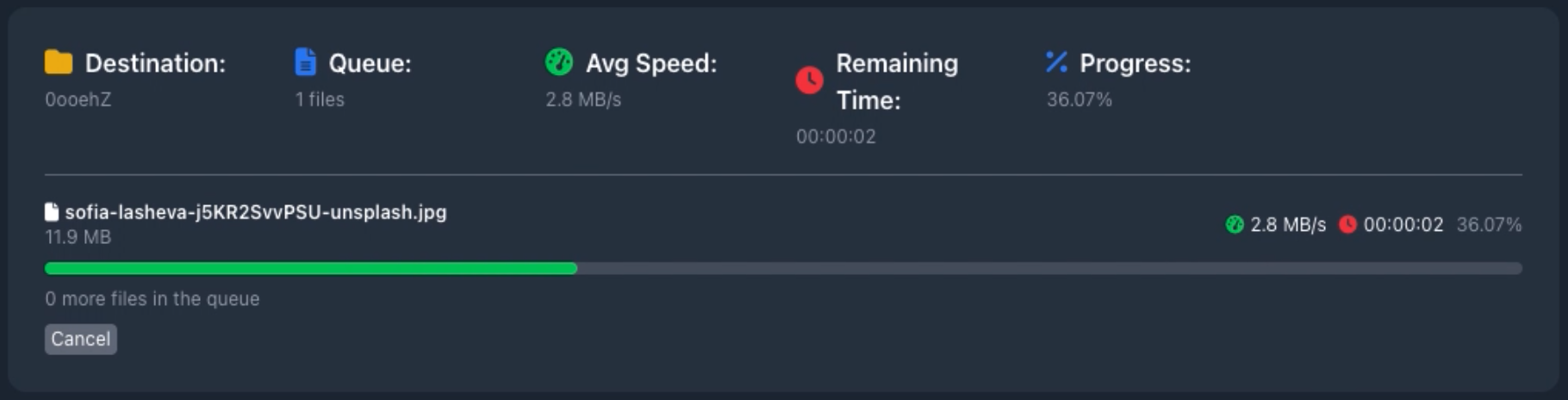
After you choose a file, Gofile starts uploading it. You see progress, average speed, remaining time and the destination folder name.
Step 3 - Get the folder link
When the upload completes, Gofile automatically creates a folder. You see a confirmation panel with the folder link and a QR code. This link is what you’ll share.
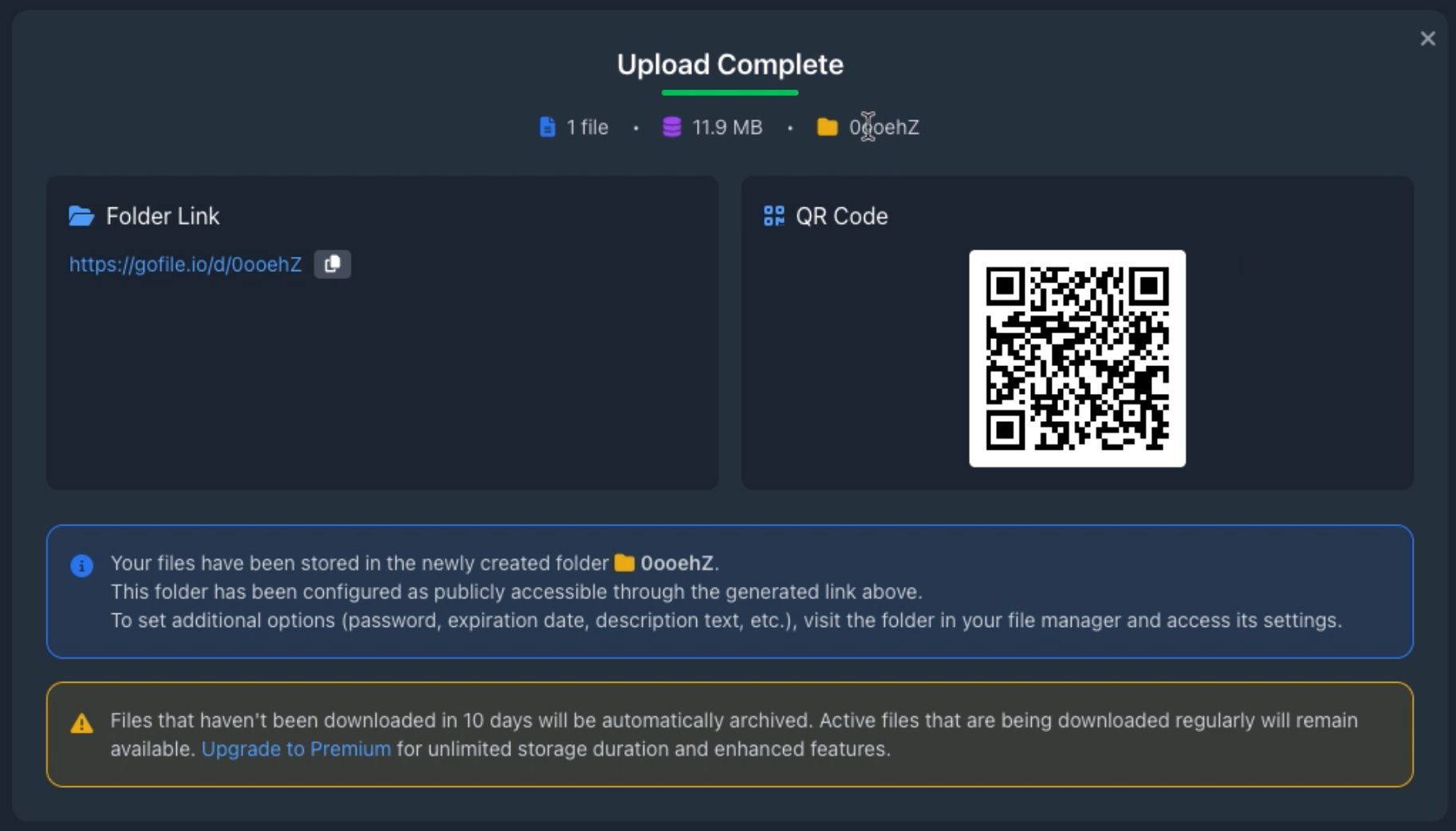
Under the link, Gofile also explains its retention policy: free uploads are kept for a limited time if they’re inactive. Files that are accessed regularly stay available; long-term, non-expiring storage is part of the premium offer.
Step 4 - Open the folder in the file manager
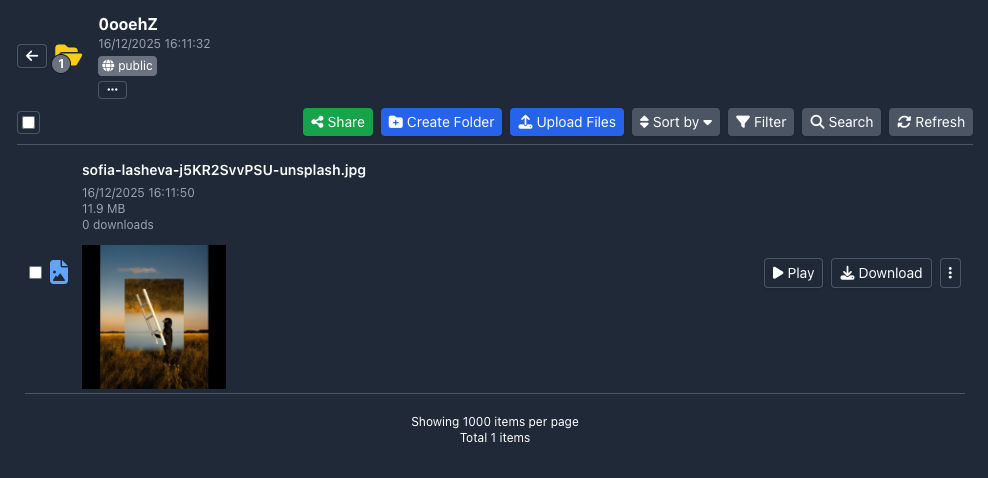
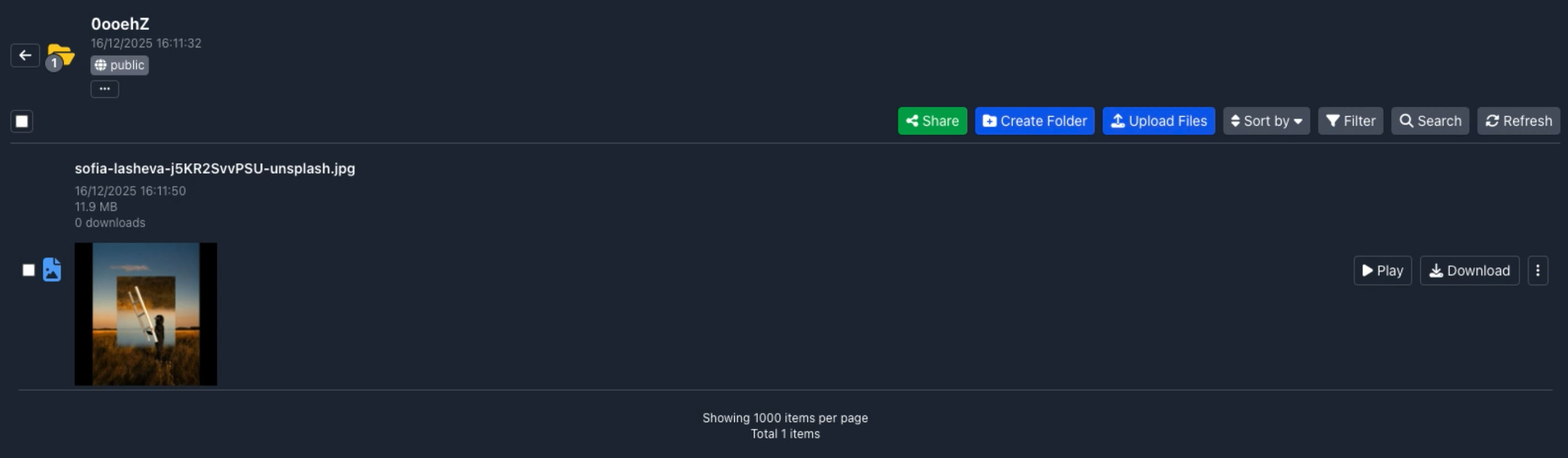
You can now open the folder in the Gofile file manager. This view lets you see the file, its size, upload date and download count, and it gives you access to actions such as playing media, downloading, or opening the share dialog.
Step 5 - Share your Gofile folder link
Click the green Share button to open the sharing panel. Gofile shows:
- The folder name
- The shareable URL with a copy button
- A QR code that encodes the link
- Shortcuts to share on common social networks or via email
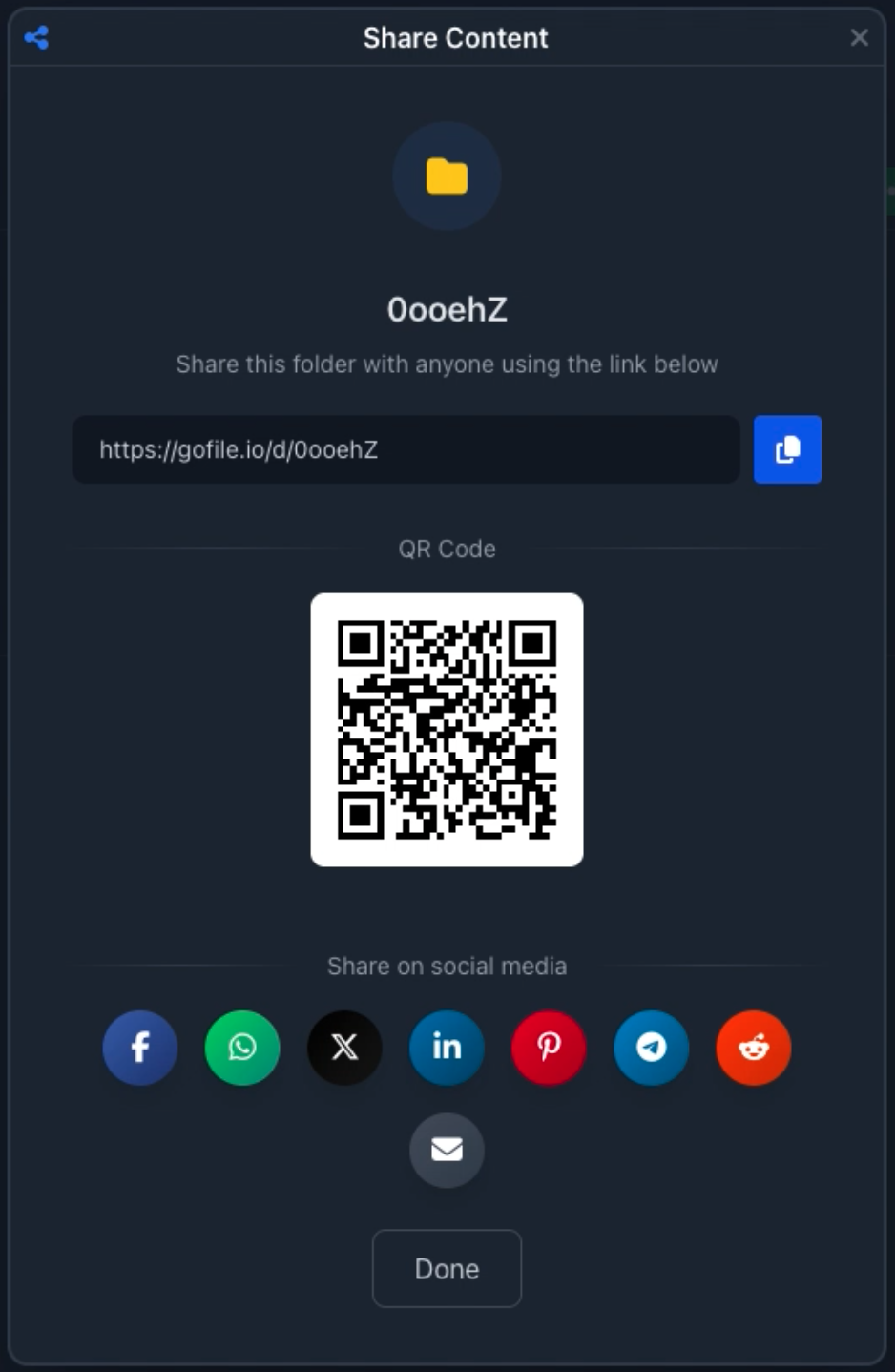
At this point you can paste the link anywhere: in a private message, on a forum, in documentation, or any other place where people need access to the file.
3. How long do Gofile free links last?
Gofile is optimized for easy sharing, not infinite free storage. For free uploads, files that stay unused for several days are gradually archived or removed, while content that continues to be downloaded can remain available for longer. Premium plans exist for people who need persistent, long-term storage where data does not expire.
Practically speaking: if you share a free Gofile link, treat it as a temporary link. It’s perfect for short-term distribution or quick hand-offs, but you shouldn’t depend on it for permanent archiving.
4. How do you open a Gofile link?
For the person receiving the link, things are simple: paste or click the URL, and Gofile opens in the browser. If the folder is public, they immediately see the files and can download. If the uploader added a password, Gofile asks for it before showing the contents.
This is why Gofile links are so popular: one URL is enough to share an entire folder.
5. Sharing Gofile links on the web? Here’s where PrevTool helps.
Once you start sharing your Gofile folder link around the internet, it will appear in many different places: forum posts, social threads, link lists, chat archives, and more. Over time, those pages can contain a lot of Gofile URLs, and not all of them will stay valid.
PrevTool is a Chrome extension built exactly for this situation. It focuses on productivity:
- Preview on hover: when you hover a Gofile link, PrevTool shows what’s inside the folder (files, structure, sizes) in an inline panel.
- Avoid broken links: you see quickly if a link is still accessible or if it’s no longer available - before you waste a click or open a new tab.
- Download from the preview: when downloads are available, you can start them directly from the preview, without leaving the page you’re on.
PrevTool does not bypass passwords, quotas, or any Gofile limits. It simply makes it faster and safer to work with Gofile links by giving you visibility before you click.
How to Download All files in a Gofile folder with PrevTool
If you often open large Gofile folders, starting each download manually is slow. PrevTool includes a Download All feature designed for this exact use case.
- Free: Download All is available on gofile.io - open a folder on gofile.io with PrevTool installed and use the Download All button.
- Premium: Download All is also available directly from the preview tooltip on any page - hover a Gofile link and click Download All without leaving the page.
Downloads are still served by Gofile, and its limits and rules apply. PrevTool simply makes it easier to trigger all downloads at once, instead of clicking every file one by one.
6. Next step: share your Gofile link - and make browsing easier
With Gofile, you can upload a file, get a folder link, and share it publicly or privately for a limited time on the free tier. That link is ideal for short-term sharing, quick transfers, or temporary public posts.
If you frequently browse or share many Gofile links, install PrevTool to preview links instantly, skip dead ones, and download the right files with fewer clicks.
Disclaimer: PrevTool is independent and not affiliated with Gofile. Always follow Gofile’s terms of service, and only share or download content you are allowed to access.